How to Activate a Unetwork License on Your Phone
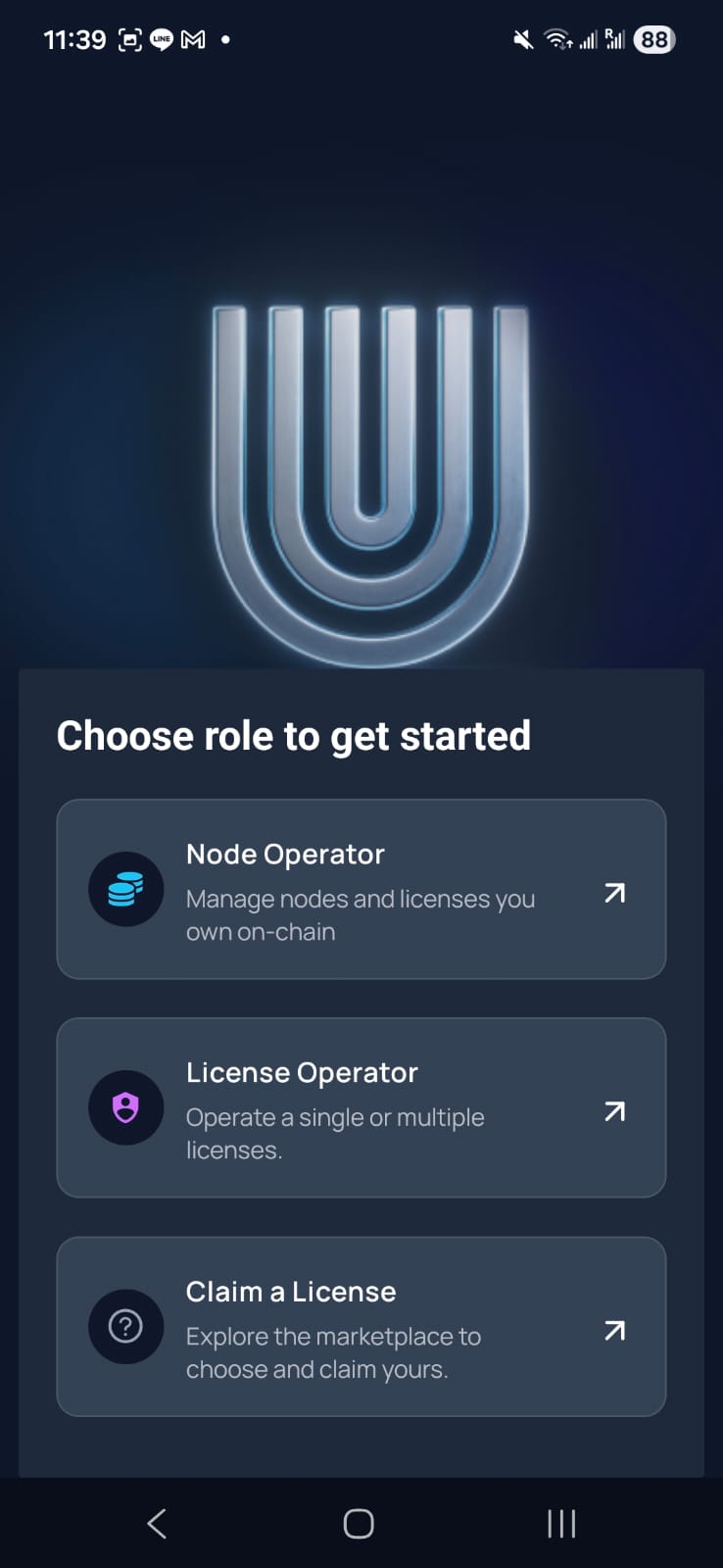
Activating a Unetwork license on your phone takes less than 10 minutes and requires no technical knowledge. You download an app, enter a lease code, grant a few permissions, and your phone starts performing telecom verification tasks automatically. That is the entire process.
If you have never heard of Unetwork before, here is the short version. Unetwork is a decentralized telecom verification network. Your smartphone performs real tasks for telecom companies, things like testing caller ID accuracy, verifying SMS delivery, and mapping network coverage. In return, you earn UPs (Unetwork Points), where 1 UP equals 1 USD. Telecom companies pay for this data because it replaces expensive traditional testing methods. Your phone does the work. You get paid.
This guide walks you through every step of the Unetwork license setup process, from downloading the app to troubleshooting common problems. Whether you already have a lease code or you are just starting to research how to activate a Unetwork license, this article covers everything you need. New to the project? Start with our complete guide to what Unetwork is and how it works.
What Do You Need Before Activating a Unetwork License?
You need three things before you can activate a Unetwork license: a compatible smartphone, the Unetwork app installed on that phone, and a valid lease code. That is the complete list. No mining rigs, no servers, no special hardware.
Compatible Smartphone
The Unetwork app runs on both iOS and Android devices. You do not need the latest flagship phone. Any modern smartphone released in the last four to five years should work. The app runs quietly in the background and uses minimal processing power, so even a budget device is fine.
Your phone does need a working mobile data connection. Wi Fi alone is not sufficient for most task types because the network needs your device to test actual cellular infrastructure. A SIM card with an active data plan is essential for earning the maximum number of tasks. Some tasks like Caller ID and SMS verification specifically require an active SIM because they involve receiving real test calls and messages through the cellular network.
| Requirement | Details |
|---|---|
| Operating system | iOS 14+ or Android 8+ |
| Cellular connection | Active SIM with data plan (required for most tasks) |
| Storage | ~100 MB free for the app |
| Monthly data usage | Approximately 7 GB per month |
| Battery | Minimal drain; app runs in the background |
A Valid Lease Code
A lease code is a unique string that binds a Unetwork license to your device. Lease codes are issued by Unetwork Node Owners (UNOs), people who purchased nodes on the network. Each node contains 200 licenses, and node owners can lease those licenses to operators like you.
Lease codes look like alphanumeric strings, typically in a format such as "UNL-XXXX-XXXX-XXXX." You enter this code in the Unetwork app and it activates the license on your phone. Each lease code also includes a revenue split that determines how earnings are divided between you (the operator) and the node owner.
Three standard splits exist:
| Split | You (Operator) Get | Node Owner Gets |
|---|---|---|
| 50/50 | 50% of earnings | 50% of earnings |
| 40/60 | 60% of earnings | 40% of earnings |
| 30/70 | 70% of earnings | 30% of earnings |
The second number in the split refers to the operator's share. So a 30/70 split means you keep 70% and the node owner keeps 30%. Higher operator shares are typically offered in regions with high task demand to attract reliable operators.
Where Can You Get a Unetwork Lease Code?
You can get a Unetwork lease code from the unetworklicense.com license directory, which lists available lease codes from verified node owners. Browse the directory, find a code with a split that works for you, and copy it to your clipboard. That is it.
Other sources include Unetwork community groups on Telegram and Discord, where node owners frequently post available codes. You can also contact node owners directly through the Minutes Network community. Wherever you get your code, make sure it comes from a legitimate source. Only enter lease codes from node owners you trust or from verified directories.
Need a Lease Code?
Browse available Unetwork licenses with different revenue splits and claim a code in seconds.
Browse Lease CodesHow Do You Download the Unetwork App?
The Unetwork app is available as a free download on both the Apple App Store and Google Play Store. Search for "Unetwork" in your device's app store and install it. The download is small, approximately 100 MB, and takes less than a minute on most connections.
For iOS users:Open the App Store on your iPhone or iPad. Search "Unetwork" and tap Get. The app requires iOS 14 or later. If you had the old "Unity Network" app installed, update it. The rebrand changed the name, but existing installations carry over seamlessly.
For Android users:Open Google Play Store. Search "Unetwork" and tap Install. The app works on Android 8 (Oreo) and later. Most modern Android devices from the past four years are compatible.
Once installed, open the app and create an account. You will need a valid email address. The signup process takes about two minutes. After creating your account, you will land on the main dashboard. This is where you will enter your lease code in the next step.
A Note for Former Unity Network Users
If you previously used the Unity Network app, Unetwork is the same network under a new brand. The technology, license structure, and earnings system are identical. Your existing account, lease codes, and earnings history all carried over automatically during the rebrand. You do not need to create a new account or re enter your license code. Just update the app to the latest version and everything continues working as before.
How Do You Activate a Unetwork License Step by Step?
Activating your license takes about five minutes once you have the app installed and a lease code ready. Follow these steps exactly and your phone will start receiving tasks almost immediately.
Step 1: Open the Unetwork App and Log In
Launch the Unetwork app on your phone. If this is your first time, log in with the account you created during installation. If you are already logged in, you will see the main dashboard showing your current task status and earnings (which will be zero if you have not activated a license yet).
Step 2: Select the License Operator Role
The app has two primary roles: Node Owner (UNO) and License Operator (ULO). As someone who is leasing a license, you are a License Operator. Select this role when prompted. If the app does not prompt you automatically, look for the role selection option in your account settings or profile section.
Selecting the License Operator role tells the app that you will be entering a lease code from a node owner, rather than managing your own node. This is the correct path for most new users.
Step 3: Enter Your Lease Code
Navigate to the License section of the app. You will see a text field where you can enter your lease code. Paste or type the code you received from the license directory or your node owner. Double check that you have entered it correctly. Lease codes are case sensitive and every character matters.
Once you submit the code, the app will verify it against the network. This usually takes a few seconds. If the code is valid and unclaimed, the app will confirm activation and display your agreed revenue split (such as 50/50, 40/60, or 30/70). If the code is invalid or already claimed by another device, you will see an error message and need to obtain a different code.
Step 4: Grant Required Permissions
After activating your license, the app will request several permissions. Each permission enables specific task types. Granting all of them maximizes your earning potential.
| Permission | Why the App Needs It | Tasks It Enables |
|---|---|---|
| Location (Always) | Records GPS coordinates during coverage mapping | Scout, Runner |
| Phone / Call access | Receives test calls for caller ID verification | Caller ID Testing |
| SMS access | Receives test SMS messages for delivery verification | SMS Verification |
| Background activity | Keeps the app running when screen is off | All tasks (Connection runs 24/7) |
| Notifications | Alerts you about new task assignments and earnings | Optional but recommended |
Important:On Android devices, you may need to disable battery optimization for the Unetwork app. Android aggressively kills background apps to save battery, which can interrupt tasks and reduce your uptime score. Go to Settings, then Battery, then find the Unetwork app, and set it to "Unrestricted" or "Don't optimize."
On iOS, make sure Background App Refresh is turned on for the Unetwork app. Go to Settings, then General, then Background App Refresh, and toggle it on for Unetwork.
Step 5: Confirm Activation and Start Earning
Once permissions are granted, your license is fully active. The app dashboard will update to show your license status as active and your revenue split. Tasks will begin arriving automatically based on your location and the current demand for verification data in your area.
You do not need to manually start tasks. The Unetwork app handles task assignment, execution, and reporting entirely in the background. Your phone will receive Caller ID test calls, SMS verification messages, and Connection tasks without any action on your part. Scout and Runner tasks activate when the app detects that you are walking or driving, respectively.
What Happens After You Activate Your Unetwork License?
Your phone immediately becomes part of the Unetwork edge network and starts performing telecom verification tasks automatically. There is nothing else you need to do. The app runs in the background, completes assigned tasks, submits verifiable proof to the blockchain, and credits your account with UPs.
Understanding Your Dashboard
The app dashboard shows several key metrics you should pay attention to:
| Metric | What It Means |
|---|---|
| UPs Earned | Total Unetwork Points earned (1 UP = 1 USD) |
| Tasks Completed | Number of verification tasks your phone has finished |
| Uptime | Percentage of time your phone has been online and available |
| License Status | Shows whether your license is active and connected |
| Revenue Split | Your agreed earning split with the node owner |
Higher uptime directly translates to more earnings. The more hours per day your phone is connected and available for tasks, the more UPs you accumulate. Aim for at least 50% uptime (12 hours per day) for reasonable earnings. Operators who keep their phones online 20+ hours per day consistently earn the most.
What Types of Tasks Will Your Phone Perform?
Your phone will perform five types of telecom verification tasks. Some are active (they happen when you are moving) and some are passive (they run in the background regardless of what you are doing).
Caller ID Testing is one of the highest value tasks. Your phone receives test calls from the network and verifies that caller ID information transmits correctly across carrier boundaries. Telecom companies need this data because international call routing through multiple carriers can corrupt or strip caller ID information. This task requires an active SIM card.
SMS Verification tests message delivery accuracy. Your phone receives test SMS messages and reports whether they arrived with the correct content, timing, and sender information. This also requires an active SIM card.
Scout tasks activate when you walk. The app records signal strength, network type (3G, 4G, 5G), and GPS coordinates as you move on foot. Scout tasks map coverage in areas that have never been tested before.
Runner tasks activate when you drive. They capture coverage data at vehicle speeds, testing how well the network handles tower handoffs (switching between cell towers as you move). Runner tasks validate and re verify routes that Scouts have already mapped.
Connection is completely passive. Your phone periodically measures latency, download speed, upload speed, and general connectivity quality without you doing anything at all. This background telemetry runs 24/7 and requires no SIM card.
Realistic Earnings Expectations
Let us be straightforward about the numbers. A single Unetwork license currently earns approximately $7 per month at typical uptime levels. When Scout and Runner tasks launch more broadly, projected earnings increase to around $48 per month for a full node of 200 licenses at 50% uptime.
As an individual operator running one license, your monthly earnings will be modest at current task rates. The value proposition is strongest in developing markets like the Philippines, India, Nigeria, and Thailand, where even a few dollars per month in USD translates to meaningful local purchasing power. Earnings also scale if you operate multiple licenses across multiple devices.
Unetwork is not a get rich quick scheme. It is a legitimate decentralized network that pays operators for real work. The upside bet is that as more telecom partners join and task volumes increase, per license earnings will grow. But at today's rates, set realistic expectations.
Can You Use Multiple Devices with One Unetwork License?
No, each Unetwork license is bound to a single device at a time. One lease code activates one license on one phone. If you want to run licenses on multiple devices, you need a separate lease code for each device.
This is by design. The network needs each license to represent a unique physical location and a unique cellular connection. If one license could run on multiple phones simultaneously, the verification data would be unreliable. Telecom companies pay for data that reflects real, singular device experiences on their networks. Allowing one license to operate from multiple locations at the same time would compromise data integrity.
Running Multiple Licenses Across Multiple Devices
While one license per device is the rule, there is no limit on how many licenses you can operate as a single person. If you have three phones, you can lease three separate codes and run three licenses simultaneously. Many serious operators run five, ten, or even more devices, each with its own license.
The economics of running multiple devices look like this:
| Devices | Licenses Needed | Estimated Monthly Data Cost | Estimated Monthly Earnings (projected) |
|---|---|---|---|
| 1 phone | 1 | ~$3 | ~$7 (current) / higher with Scout and Runner |
| 3 phones | 3 | ~$9 | ~$21 (current) |
| 5 phones | 5 | ~$15 | ~$35 (current) |
| 10 phones | 10 | ~$30 | ~$70 (current) |
Used smartphones are inexpensive in many markets. In the Philippines, a capable used Android device costs $30 to $60. Combined with a cheap prepaid data plan, the breakeven on each additional device can happen within a few months, depending on task availability in your region.
If you are managing multiple Unity nodes (the old branding for Unetwork nodes) or have transitioned from the Unity Network era, the process is the same. Each device needs its own lease code, and each code ties to one license from one node.
How Do You Troubleshoot Common Unetwork Activation Issues?
Most activation issues fall into a handful of categories. Here are the most common problems and how to fix them.
Lease Code Says "Invalid" or "Already Claimed"
If your lease code shows as invalid, double check that you copied it correctly. Lease codes are case sensitive and a single wrong character will cause a failure. If you copied the code from a website or message, watch out for extra spaces at the beginning or end that may have been included accidentally.
If the code shows as "already claimed," it means another device has already activated that specific code. Lease codes are one to one. You will need a different code. Go back to the license directory and select an unclaimed code.
App Keeps Closing or Losing Connection
This is almost always caused by aggressive battery optimization on Android. The operating system kills the Unetwork app to save power, which interrupts tasks and drops your uptime.
Fix for Android:Open your phone's Settings. Go to Battery (or Battery and Device Care on Samsung). Find the Unetwork app in the list. Set it to "Unrestricted" or "Don't optimize." On some Android skins (Xiaomi MIUI, Huawei EMUI, Oppo ColorOS), you may also need to lock the app in the recent apps tray to prevent it from being killed. Swipe down on the app card in your recent apps and look for a lock icon.
Fix for iOS: Go to Settings, then General, then Background App Refresh. Make sure it is turned on for Unetwork. Also check Settings, then Unetwork, and ensure all permissions are still enabled. iOS occasionally resets permissions after updates.
No Tasks Appearing After Activation
If your license is active but you are not receiving any tasks, several factors could be at play:
- Location matters. Task availability varies by region. Operators in the Philippines, India, Nigeria, and Thailand tend to receive the most tasks. If you are in a region with low telecom partner coverage, fewer tasks may be available.
- Permissions are incomplete.If you denied location, phone, or SMS permissions, certain task types will not be assigned to your device. Go to your phone's settings and verify all requested permissions are granted.
- The app needs time. After initial activation, it may take a few hours for the network to begin assigning tasks to your device. Connection tasks should appear first since they require the least setup.
- Network congestion. If many operators are online in your area, tasks are distributed among all available devices. More operators in one region means fewer tasks per individual.
Caller ID or SMS Tasks Not Working
These specific task types require an active SIM card with phone and SMS capabilities. If you are running the app on a Wi Fi only device or a tablet without a SIM, Caller ID and SMS tasks will not be assigned. Make sure your SIM card is active, has credit or a plan, and that you have granted phone and SMS permissions to the app.
Some carriers also block test calls or messages from unknown numbers. If you have call blocking or spam filtering enabled on your phone, try disabling it temporarily to see if Caller ID tasks start coming through.
App Shows "Offline" Despite Having Data
If the Unetwork app shows your status as offline even though your phone has a working data connection, try these steps in order:
- Force close the app and reopen it.
- Toggle airplane mode on, wait 10 seconds, then toggle it off.
- Check that your data plan has not expired or run out of quota.
- Restart your phone entirely.
- If the problem persists, uninstall and reinstall the app. Your license will remain bound to your account, so you will not lose it.
How Do You Maximize Your Unetwork Earnings After Activation?
Your earnings depend on three factors: uptime, location, and permissions. Optimizing all three is the key to making the most from your Unetwork license.
Keep Your Phone Online 24/7
Uptime is the single biggest factor in your earnings. The more hours per day your phone is connected to the network and available for tasks, the more you earn. Aim for at least 50% uptime (12 hours daily) as a minimum. Top earners maintain 80% to 90% uptime by keeping their phones plugged in and connected at home, at work, and overnight.
A dedicated device works best for maximum uptime. If you use your primary phone for the Unetwork app, switching it off at night or restarting it frequently will reduce your uptime score. Many operators use a secondary or older phone specifically for running their Unetwork license, leaving it plugged in and connected at all times.
Grant All Permissions
Every permission you deny reduces the types of tasks your phone can receive. Denying location access means no Scout or Runner tasks. Denying phone access means no Caller ID tasks. Denying SMS access means no SMS verification tasks. For maximum earnings, grant every permission the app requests.
Move Around During the Day
Scout and Runner tasks require physical movement. If your phone sits on a desk all day, you will only receive passive Connection tasks and occasionally Caller ID or SMS tasks. Operators who walk or drive regularly as part of their daily routine earn more because they generate coverage mapping data that the network values highly.
You do not need to go out of your way. Just carrying your phone with you during normal daily activities (commuting, errands, walks) is enough to trigger Scout and Runner tasks.
How Does the Unetwork App Compare to Other DePIN Apps?
The Unetwork app stands apart from most DePIN (Decentralized Physical Infrastructure Network) projects because the work it performs is genuinely useful. Many DePIN tokens are earned through proof of coverage or proof of location that have limited real world demand. Unetwork operators complete tasks that telecom companies actually pay for.
| Feature | Unetwork | Typical DePIN Project |
|---|---|---|
| Work performed | Real telecom verification for paying clients | Often proof of coverage with limited demand |
| Token value | 1 UP = 1 USD (pegged) | Volatile token price |
| Hardware required | Any smartphone | Often requires specialized hardware ($300+) |
| Withdrawal | Min $5, multiple chains, fast cash out | Often locked, vested, or slow to withdraw |
| Entry cost | Free (as a leased operator) | Hardware purchase often required |
The 1 UP = 1 USD peg is particularly significant. Most crypto projects pay in a volatile token whose value can swing 50% in a week. Unetwork operators know exactly what their earnings are worth because UPs are pegged to the dollar. When you see 10 UPs in your dashboard, that is $10. No guesswork. No checking CoinGecko every hour.
Ready to Activate Your First License?
Browse available Unetwork licenses, copy a lease code, and start earning in under 10 minutes.
Claim a LicenseWhat Should You Know About Withdrawing Your Earnings?
Unetwork operators withdraw their UPs as cryptocurrency directly from the app. The minimum withdrawal is $5 in UPs and each individual withdrawal is capped at $150. There is no limit on how many withdrawals you can make.
Supported withdrawal chains include Ethereum, Binance Smart Chain, Solana, XRP (Ripple), and Cardano. You select your preferred blockchain, enter your wallet address, and the UPs are converted and sent to your wallet. From there, you convert to local currency using a regional exchange.
For Filipino operators, the fastest path is GCash GCrypto. You can go from UPs to pesos in your GCash wallet in about 15 minutes. Indian operators typically use CoinDCX. Nigerian operators use Quidax or Busha. Thai operators use Bitkub. The exact method depends on your country, but the process is straightforward in most major markets. For the full breakdown with step by step instructions per country, see our complete withdrawal guide.
Frequently Asked Questions
How long does it take to activate a Unetwork license?
The entire activation process takes about 5 to 10 minutes. This includes downloading the app, creating an account, entering your lease code, and granting permissions. Tasks begin arriving within minutes to hours of activation, depending on your region.
Is the Unetwork app free to download?
Yes. The Unetwork app is free on both the Apple App Store and Google Play Store. You do not pay anything to download or install the app. The only requirement is a valid lease code to activate a license, and lease codes from node owners on unetworklicense.com are also free to claim.
Can I run a Unetwork license on a phone without a SIM card?
Partially. The app can run Connection tasks over Wi Fi without a SIM card, but Caller ID Testing and SMS Verification require an active SIM with phone and messaging capabilities. For maximum earnings, use a device with an active SIM card and a data plan.
What happens if I switch phones? Do I lose my license?
Your license is tied to your Unetwork account, not permanently locked to one physical device. If you switch phones, install the Unetwork app on your new device, log into your account, and your license should transfer. Contact Unetwork support if you encounter issues during the transition.
How much data does the Unetwork app use per month?
The Unetwork app uses approximately 7 GB of mobile data per month at typical usage levels. This covers task execution, data reporting, and connectivity checks. The exact amount varies based on which task types are active and how often your phone is assigned tasks. A prepaid data plan with 10 GB or more is recommended.
Can I use one lease code on multiple phones at the same time?
No. Each lease code activates one license on one device. If you want to run Unetwork on multiple phones, you need a separate lease code for each device. This one to one binding ensures the verification data from each device is authentic and tied to a unique location.
What is the difference between a Unetwork Node Owner and a License Operator?
A Unetwork Node Owner (UNO) purchased a node containing 200 licenses. A License Operator (ULO) leases one or more of those licenses from a node owner and runs them on their phone. Node owners invest capital. Operators invest their phone and time. Earnings are split between the two according to the agreed ratio (50/50, 40/60, or 30/70).
Is Unetwork the same as Unity Network?
Yes. Unetwork is the official rebranded name of Unity Network. The technology, license structure, rewards system, and app are all the same. The name changed to create a distinct brand identity separate from Unity Technologies, the game engine company. All existing Unity Node licenses and operator accounts carried over to Unetwork automatically.